

Welcome to the online abode of a writer, programmer and illustrator named V. Subhash. You will never find another guy with so many talents as this one. Yeah, that's me!
First, some recent updates from my microblog FreeTweetor:
- January 2024:
- Some articles published in Open Source For You magazine last year.
- In September: Some Advanced FFmpeg tricks
- In October: PDF tricks for the Linux Command-Line
- In December: How to Use RSS for Privacy and Profit

- In January, an article about using AI in writing/publishing.
- I have updated my blog post on
ffplaywith with new commands, video and screenshots. The barebones player can now display ASS subtitles and also has a timer and a progress bar. It also increases colour saturation and autolevels the volume (dynamic compression). - Some books arrived in the mail and I have reviewed them on video.
- Some articles published in Open Source For You magazine last year.
- March 2024:
- I discovered some new Unicode tricks.
- The first edition of Unlikely Stories has cheapened itself on Amazon India! 😉️
- April 2024: A new version of FFmpeg has been released so I have reviewed it on CodeProject.com.

Dear writers, say NO to AI!
This is an appeal to writers to steer clear of AI and instead an exhortation to focus on improving their craft.
How to use RSS for privacy and profit
Social Media may tempt website owners by bringing in a swarm of visitors once in a while but that is essentially a bait-and-switch trap. Ultimately, the Social Media companies will want to be paid. There are other less onerous ways to grow the audience for a website. Email is one of them but not everyone wants to consume news, opinion or entertainment through email. How about RSS? It is a time-tested strategy to build a loyal audience without exposing them to the intrusive tracking done by tech giants.
How to programmatically create HTML, ODT, DOCX and PDF for free
MarkDown is an easy human-readable text format that can serve as the common base for exporting to multiple document formats such as HTML, ODF, DOC/DOCX, PDF and ebook (EPUB, MOBI…). In this article, I show how to use CommonMark (MarkDown) and CSS to create validation-safe HTML and then use LibreOffice CLI to create ODT, DOCX and PDF documents from those HTML documents.
How to tame Mozilla Firefox
Firefox developers take no pride in their work. After Google Chrome showed up, Mozilla gave Google the mantle for browser development. For years, it has been imitating Chrome rather than doing its own thing. It routinely introduces breaking changes. It removes useful features such as RSS support. It alienated hundreds of thousands of users by abandonings XUL add-ons architecture in favour of WebExtensions created by Google for its add-ons. Firefox has also imported Chrome's attitude of treating users as morons. You cannot change settings. With every update, more and more settings become useless. It only allows settings changes only in corporate environments. This article shows how you can take advantage of this decision and trick Firefox into respecting your settings decisions.
‘Unlikely Stories’ book

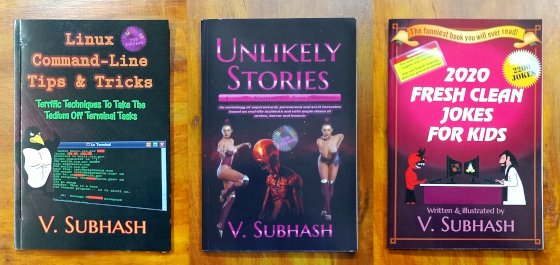
Unlikely Stories is an anthology of scary & funny stories — an exorcism, an alien encounter, a haunted lift, a seance, a shapeshifter, a werewolf, a talking bird, an evil twin, an alien invasion and a distressed young alpaca — all weaved into a witty love yarn.
Despite being based on real-life incidents, the stories have tuned out to be supernatural, paranormal and sci-fi fantasies with ample doses of action, horror and humour.
The first edition of this book was published in 2022. Two characters introduced in the first edition have become the vehicle for all the stories in the second edition. One of them is Mademoiselle Zuma. She was inspired from an episode of Duffy's Tavern radio show. In the show, she was a French-accented American con artist. In my book, she is a mind-reading Roma woman. The new stories are mostly written from her perspective.
The first edition will continue to be available alongside the second. The target audience is anyone over 16.
This is my first and probably the last fiction title. I have a how-to-draw-cartoons book pending. After that, I am done writing books.
Unusual Unicode Tricks
A collection of unusual tips and tricks with Unicode, ASCII art, fonts, emojis/emoticons, HTML entity references and forms, universal stylesheet, Unicode Compose key, country (region) codes
How to Make Your Website Serve Pages Faster?
Browsing through CNN's HTML source code, I found a message asking for ideas on how to improve the site's speed. The CNN Labs team has already implemented several speed improvement techniques such as CDN, DNS prefetching, aysnc loads, and code minifying, and were interested in anything developers curious enough to look into their code could provide. Here are a few site-optimization techniques I came up with.
‘The Tall Tales Of Elephant & Ant’ book

From time unknown, Elephant and Ant stories have been popular with kids in Kerala. (There they are known as Aanayum Urumbum stories in the Malayalam language.)
The size difference between Ant and Elephant would make any friendship between them extremely unlikely but that is just the beginning. Sit back for a roller-coaster ride between myth and reality. All Elephant and Ant stories are tall tales. The more unbelievable the story is, the more funny it sounds.
‘How To Install Solar’ book

‘How To Install Solar’ is a heavily illustrated 2021 how-to guidebook for anyone interested in installing solar power systems. It starts with a simple introduction to home electrical systems, proceeds on to describe various aspects of solar power and options available for home owners, and then provides step-by-step instructions for installing a low-cost DC-only solar charge controller system for ₹6000 and a solar inverter system providing AC power backup for ₹30,000. Also included is an extensive FAQs section based on questions and reviews published by solar power users online.
The paperback is a full-colour book and is extensively illustrated with drawings and tables.
‘Linux Command-Line Tips & Tricks’ book

This is a hack collection for Linux command‑line warriors. Because of the shell's ancient history, BASH scripting has some odd programming constructs that are difficult to memorize. This book is a ready-reference for such archaic but crucial details. It is also at an advanced level. It assumes that you already know how to use the terminal and are adept at shell programming. It does not teach you the basics or try to be a comprehensive reference. It trusts your intuition and focuses on things that you are most likely to forget or be confused about. It devotes special attention to coding mistakes or unusual circumstances in which your script or command will fail. This second edition has plenty of screenshots and syntax-highlighted code snippets (only in paperback), all in FULL-COLOUR.

‘Cool Electronic Projects’ book

This FULL-COLOUR paperback is a collection of 20 electronics projects for students and DIY hobbyists. The projects are simple, low-cost, daily-use, recycling, survivalist and fun.

‘World Of Word Ladders’ books by Ólafia L. Óla

A word ladder has a diagram of a ladder with a word on both the first and last rung. The blanks on the middle rungs are for you to complete. One and only one letter needs to change in each blank rung of the ladder so that the first word is transformed into the last word.
Word ladders are a wonderful pastime. They are neither tough nor easy. Whoever invented it seem to have found the right balance between exercising the brain and having fun.
These books have 100 word ladders each.
‘Animalia Humorosum’ book by Ólafia L. Óla

This is an illustrated children's storybook based on Aesop's Fables. The stories have been made more believable by changing the ending with a humorous twist.
The title is not Latin for 'animal humour' but sounds like it. This is a full-colour full-bleed large-print paperback.
Ólafía L. Óla is my new unique memorable pseudonym. It is Icelandic.
A Really Traditional Alphabet Book

This children's book bundles an alphabet reading book, alphabet writing workbook, a joke book and a puzzles book. The alphabet book uses the same words that have been traditionally used to teach young kids. Young preschoolers can practice reading and writing the English alphabet with this book. The jokes and puzzles are of course new and are sourced from my book 2020 Fresh Clean Jokes For Kids.
‘Vaastu Shasthra Explained’ book

Vastu Shastra Explained is a plain-English Vástu Śastra building-architecture guide for those who wish to draw their own Vastu-compliant house plans. This 32-page book is available as a Kindle ebook and paperback.
This book:
- Explains the basic tenets of Vastu Shastra.
- Will enable you to develop your initial house plan as per Vastu Shastra.
- Includes sample house plans to explain basic Vastu implementations.
- DOES NOT upsell Vastu as a panacea for all of life's problems - NO FAKE VASTU REMEDIES.
‘Learn To Ride A Motorcycle In Five Minutes’ book

Of course, you can learn to ride a motorbike in five minutes! For most of my life, I did not know how to ride a motorbike. But, when I had to do, it took me only five minutes. On my first ride on my first bike, I travelled nearly 100 kilometres, across two cities and one national highway.
If you already know how to ride a motorized two-wheeler such as a scooter, then you know how to ride a motorcycle. Believe me. What you do not have is the mechanical knowledge of how a motorcycle has to be operated. This book will teach you that in an hour or less. Acquiring the skill takes less than five minutes and honing it will require a few weeks of practice.
This title is available as an ebook and a paperback.
‘CommonMark Ready Reference’ book

This is the first book ever written by anyone about CommonMark, the new MarkDown standard. Its covers are designed as a quick reference card.
On offer are:
- eBook and paperback for purchase
- Linux and Windows executable for CommonMark (many times faster than MarkDown.pl script, as it is built from C source code)
- printable CommonMark/MarkDown quick reference card
‘Quick Start Guide to FFmpeg’ book

This is a full-colour book for quickly learning to use the free command-line multimedia-processing utility FFmpeg. Learn to cut, copy, record, edit, tag, convert, rotate, flip, resize, crop, combine, compose, blur, sharpen, smoothen, side-by-side split, PIP inset, fade in/out... videos. Also learn to use audio, images, fonts, subtitles and metadata with video.
NOTE: This book was originally published in 2020 as FFmpeg Quick Hacks. I rewrote it and the new book was published by Apress in February 2023.
‘2020 Fresh Clean Jokes For Kids/Everyone’ books

At over 3100 jokes, this will be the second biggest jokebook. It will be published on July 20th. Initially, the full paperback will be priced at $9 while the kids version with 2200 jokes will be priced at $7. All jokes are child-friendly and family friendly.
The 2020 Fresh Clean Jokes For Everyone has three parts:
- Part 1 - For students and those with specialized skills - children jokes, computer jokes, computer programming jokes, cross-the-road jokes, animal jokes, physics jokes, biology jokes, geography jokes, medical jokes, pun jokes
- Part 2 - Purely for the hedonistic consumption of humour - bar jokes, blonde jokes, knock-knock jokes, financial jokes, jokes in advertising, jokes on journalism, romantic jokes, Rajinikanth Facts (like Chuck Norris facts)
- Part 3 - For intellectuals - Confucius-say jokes, ethnic jokes, lightbulb jokes, political jokes
These books are available only as paperbacks.
NetCheck app for Android/Linux/Mac/Windows
NetCheck provides audio and popup/status bar notifications when Internet link drops or re-connects. The mobile version supports Android v1.6 (Donut) to v8 (Oreo). The desktop version is a Java software and works in GNU/Linux, Mac and Windows. Both versions are free for personal and commercial use.

Both types of notifications can be disabled. The icon picture alone can be used as a unobtrusive indicator.
Thunderbird/Seamonkey Tips and Tricks
Learn to use and store email messages offline with Thunderbird/Seamonkey. Also, learn about their other talents as RSS feed reader, NNTP newsgroup reader, IRC client, etc.
Creating animations using Gimp
In an older article, I described how to create cartoons using Inkscape. In this article, you can go further and learn how to create animated cartoons using both Inkscape and GIMP. The output for these animations will be the popular and Web-friendly GIF format.
How to draw caricatures using Inkscape
Inkscape is a great open source tool for drawing cartoons. In this article, you can learn how to use it for creating simple caricatures.
Vintage Radio Shows
Old radio shows from the 1930s and 40s are being hosted as free MP3 files by the Internet Archive. Among them are old sitcoms that are as funny and entertaining as Friends or Seinfeld.
Cool Terminal Tricks
bash is an interactive and scripting shell program for Unix and Unix-like operating systems. In this article, you will learn a few neat tricks that will make bash a more convenient and useful tool to manage your GNU/Linux system.
Cool FFmpeg Tips and Tricks
Learn about FFmpeg and its command-line usage - to convert audio and video files, fix errors, rotate videos, cut a part of a video, append one video to another, perform 2-pass encoding for better video quality. You can also learn to automate audio/video tasks in your file manager using Nautilus Action Configurations or Caja Actions.
Build a powerful Linux computer for newbies
First impressions are best impressions. When building a Linux system for a Linux newbie, it is important that you go beyond the default installation. You need to add additional software, configure the system for the best combination of convenience and aesthetics, and provide the new user with simple tips and tricks to be self-sufficient.
How to run Android without Google
If you are dependent on Google Apps or if you need to regularly pull email and social networking status updates, then this article is not for you. If however you would like to benefit from improved battery life, the satisfaction of causing less global warming, and maybe some more peace of mind, well... read on.
CellTowerTracker app for Android!
CellTowerTracker identifies locations by cell towers. It does not require GPS, wireless or mobile data connections. It can provide ringtone-based alerts even when phone is locked.
Subhash SiteChecker app for Android
A free website-monitoring app with automatic e-mail option. Works with Android 1.6 and above.
EmailTweetor app for Android/Linux/Mac/Windows
This software has become obsolete. I will not update it as I hate social media.
EmailTweetor is a free Twitter client that is available in two versions - Android APK and Java JAR. The Java version can be used on GNU/Linux, Mac and Windows. EmailTweetor, like any other Twitter client, can tweet with text and images. It can break up long messages into multiple tweets and string them up as replies to one another. It can also delete, favorite, re-tweet and reply tweets. In Android, it can forward the same content to email, blogging and other "sharing" apps without the need for re-typing. In the Java version, it does not do any emailing or sharing; just tweeting, replying, retweeting, favoriting and deleting. But, it can be used in used in automation tasks such as shell scripts and software programs.</del
Subhash Comic Viewer app for Android
This is a very simple app for extracting Comic Book Archives (in CBR and CBZ formats). It can also be used extract ZIP and RAR files a.k.a. file archives or compressed folders. When you open a CBZ/CBR/ZIP/RAR file with the app, the will create a simple webpage with the images in the archive. You can view this web page in any browser app of your choice.
AndroidWithoutStupid Java Library!
Android programming is extremely awkward. The designers of the SDK have left a lot of internal plumbing code open that requires developers' attention. The simplest of tasks take several lines of code.
AndroidWithoutStupid is an open-source public-domain Java library is a solution to such woes. It provides one-line function alternatives to the spaghetti code that is the bane of Android Java programming.
சுபாஷ் வலை Tamil browser app for Android
வலைதளங்கள் (websites) மற்றும் செய்தித் தொடர்களை (RSS feeds) படிக்க, இந்த விளம்பரமில்லா இலவச எடுபிடியை பயன்படுத்தலாம்.
സുഭാഷ് വല Malayalam browser app for Android
This Android app is the Malayalam version of Subhash Browser & Feed Reader. It combines a Web browser, RSS/ATOM feed reader, file browser and app launcher.
Subhash TweetsToRSS app for Android/Linux/Mac/Windows
This software has become obsolete. I will not update it as I hate social media.
TweetsToRSS is a read-only Twitter server and a lightweight web server that runs on Android, Linux, Mac or Windows. It lets you browse through Twitter (without posting anything) and generate RSS feeds for Twitter user timelines, hashtags, and searches. It works in the background fetching tweets from Twitter.com and serving RSS to your feedreader apps and desktop feedreader clients and browser extensions.
Windows 8 Tips and Tricks
I thought I would never have to write this article. A few years back, I had moved to Ubuntu and Gnome 2 desktop. I am still quite happy with it. Each time I installed Windows 8 though, I had to perform the same tweaks all over again. Hence, I have created this article where I can find it all in one place.
Subhash Browser & RSS Feed Reader app for Android
Subhash Browser is an Android web browser app with an integrated RSS reader, file explorer and download manager. It is the ultimate browser and feed reader app for both ordinary users and Web developers. No other browser has so many functions as it does - user-friendly toolbar, web page screenshots, four scroll buttons, browser disguise options, developer support for User JS (bookmarklets) and User CSS. The integrated RSS feed reader makes it very easy to read articles/posts/comments from multiple websites on one single screen. The app is extremely user-friendly and customizable. It supports all Android versions from Donut (1.6) to the latest Pie (9). The app uses a dark theme to limit battery usage and eye strain. It also has integrated file manager and download manager.
Support The Arts… Our Arts… Traditional Indian Arts
When I was in school, cultural programmes meant Bharatanatyam performances or Carnatic music recitals or folk dances. Today, teachers are so talentless that the only time they come close to arts is when they watch TV. It is no wonder that kids are dancing to film music at school functions. Parents do not demand better things from the schools because the rash of reality TV programmes on TV has numbed their brains so much that they are bereft of any intelligence and don't know what is best for their kids. Films and television are truly the bane of human civilization.
Subhash File/Folder Copy Path/Name Context Menu Extensions for Windows Explorer
Subhash File/Folder Copy Path Explorer Extensions are extra Windows Explorer menu options that allow you to easily copy the path or the name of a selected file or folder.
Really Ultimate Browser JavaScript Benchmark
In 2010, it seemed that all Javascript benchmarks were queered in favour of dumb JavaScript engines whose speed could not be matched by their associated HTML-rendering engines. It was like a car hose backwheels were powered by a rocket engine and the front wheels were made of twigs. The state of affairs seems to have improved since that time.
Kolaveri Di Hoax Demystified
Is Kolaveri Di better than Roja or Mungaru Male or even Shakalakka Baby? So, why is this unlikely candidate considered a hit with the masses?
Save Kashmir
Addressing the British Prime Minister, Ambedkar said, "Prime minister, permit me to make one thing clear. The depressed classes are not anxious, they are not clamorous, they have not started any movement for claiming that there shall be an immediate transfer of power from the British to the Indian people… Their position, to put it plainly, is that we are not anxious for transfer of power from the British to the Indian people."
Undead Myths In The Wake Of iDead Steve Jobs
In the age of push-button publishing and social networking, people seem to have become de-humanised, not knowing what their true emotions are. This became very clear recently in the wake of Apple co-founder Steve Jobs' demise. Condolence messages ranged from "hagiographic" to "outright lame." Nobody seemed to have put an effort. There was no honesty nor any genuine feeling.
‘How To Cure Common Cold’ book
Common cold is not something you need to go to a doctor for. In young healthy individuals, it will resolve on its own. However, cold makes one miserable. There are some things that can be done to treat the symptoms.
‘Email Newsletter Strategies For Profit’ book

Most e-mail newsletters are never read. Some subscribers unsubscribe almost immediately after receiving the first e-mail. Some others would not even try the unsubscribe link. They will simply mark the e-mail as "junk."
What prompts this lost love? Usually, people blame quality of content. Usability is given scant attention.
In this book, not only do I explain how to create user-friendly email newsletters but also help you improve email deliverability, organically grow your mailing list, understand industry-standard best-practices and apply practical troubleshooting tips and tricks.
‘Ólafia L. Óla's Favourite Traditional Nursery Rhymes (Illustrated)’ book

The political correctness pandemic has caused many nursery rhymes to be rewritten or eliminated altogether. This illustrated children's book has 50 popular English nursery rhymes in their traditional form.
The selected rhymes have stood the test of time and this FULL-COLOUR LARGE-PRINT book makes it easy for kids to learn them.
Bonus content includes a few Aesop's fables, jokes and word ladder puzzles from my other books (Animalia Humorosum, 2020 Fresh Clean Jokes For Kids and World Of Word Ladders).
ClickToType Online Malayalam Keyboard
കംപ്യൂട്ടറില് മലയാളത്തില് ടൈപ്പ് ചെയ്യുന്നതിന് ഈ പേജ് ഉപയോഗിക്കാം. ടൈപ്പ് ചെയ്തത് ഈ-മെയില് അയക്കാനും കഴിയും.
V. Subhash’s VBScript Add-Ons for Microsoft BgInfo
Mark Russinovich's BgInfo is a Microsoft utility that can be set up to display computer configuration details, such as hardware information, on the Windows desktop background (wallpaper). In this page, I am offering you some unofficial add-ons that make BgInfo more useful - particularly in offices where employees are asked to provide their system configuration details to system administrators.
Pearls of Purandara
If you are looking for fine rendering of Purandaradasa kritis, then Dr. M. Balamuralikrishna and Kalavathy Avadhooth should definitely be on your list.
ClickToType Online Tamil Keyboard
கணிப்பொறியில் தமிழ் வரிகளை எளிதாக அடிக்க இந்த கருவியை நீங்கள் பயன்படுத்தலாம். அடித்த வரிகளை அப்படியே ஒரு ஈ-தகவலாகவும் அனுப்பலாம்.
Boycott Internet Explorer
This website started boycotting IE and urging Web users to switch to a better browser before it became cool to do so. Here is the pitch archived from 2009:
"I am tired of Internet Explorer's (IE's) bad behavior. I will not have any more of its nonsense. My website will boycott IE. If your computer operating system (OS) is Windows, then please use a standards-compliant browser such as Opera, Firefox, Safari, Chrome, or K-Meleon to browse this site."
Really Ultimate CSS Font Stack
The Really Universal CSS Font Stack is a basic stylesheet for Web designers to provide native font support for their web pages in almost all popular operating systems including Linux, Mac, and Windows.
Legal Terms and Conditions
The Internet is about freedom and sharing. Greedy corporates have taken the enforcement of intellectual property rights to a ridiculous extent. They pay politicians (legally and illegally) and create laws that leave the citizen little or no rights. It is easy to show them the absurdity of their audacious attempts at infringing our rights. If you are a webmaster, feel free to use these terms and conditions on your website. No attribution is necessary.
Ubuntu & Gnome Diary
When you move from Windows to Linux, there will be some transition issues. This article is a compendium of issues that came up when I began using Ubuntu 8.10 a.k.a Intrepid Ibex and later went on to Ubuntu 9.04 a.k.a. Jaunty Jackalope, and how I went on to solve those issues.
Really Ultimate Client-Sniffer JavaScript
Client sniffing is supposed to be taboo. Websites are supposed to do feature detection and proceed from there. However, any good web designer will tell you that all big websites start with reading your browser's UA string. This website does not read the UA string to serve web pages. It does however read them to make the site logs more meaningful. My client-sniffer Javascript script detects mobile phones, old PDAs, mobile-phone OSes, mobile-phone browsers, game consoles, Internet-enabled devices, Internet-enabled applications, search engine spiders and bots, and regular old browsers and operating systems. Phew!
How To Assemble A Personal Computer By Hand
As mentioned in my article PC Hardware Explained, anyone with a screwdriver can assemble a personal computer (PC) by hand. The components of a PC are modular in nature. They do not have to be welded or wired or tied together. When a few screws, levers, and plugs are in place, a PC is ready to go.
Really Ultimate HTML Email Signature Generator
Generate an HTML signature on your own and use it in Opera, Outlook, Outlook Express, Seamonkey and Thunderbird. Echelon Salt® is optional.
Horoscope for Teenaged Boys and Girls
Written by V. Subhash, a certified astrologer and alumnus of People's School of Self-Criticism, Pessimism and Astrology, People's Republic of China.
Horoscope for boys and girls - ARIES, TAURUS, GEMINI, CANCER, LEO, VIRGO, LIBRA, SCORPIO, SAGITTARIUS, CAPRICORN, AQUARIUS and PISCES.
How To DualBoot or MultiBoot Operating Systems
Learn to load Linux from the Windows boot menu. Also, get familiar with terms such as partitions, boot loader, and MBR.
Privacy Policy Statements
Read the privacy policy statement applicable to
- this website
- software created by V. Subhash
Ban The British Language
How can you be a technical writer writing English when you are an Indian?
Do you believe God exists?
I was asked to write an essay on this topic as part of a written test in a job interview in 2005. This article is what I wrote. If you are curious, rest assured that I did not get the job. A few days later, I called them and asked for my answer sheet. They obliged me with a photocopy.
Humour
Here is a collection of jokes of all types and all colours (as in black humour) from all over the globe. Most of them are what I had heard or improved up on. There is wit and wisdom up here; many humorous anecdotes and quotes; and a whole of bevy of others that simply defy description.
Subhash VCDPlayer for Windows
Subhash VCDPlayer is an outdated but free media player with special support for Video CD playback, still-image capture, and transcription (medical transcription, legal transcription, interview transcription...). The full source code is available under Gnu Public Licence 3. It works well in Windows 95/98/Me/2000/XP/Vista/8/8.1.
Context Menu Extensions For IE
These IE extensions, created in 2004, are testimony to the fact that my objections to IE are based on sound facts, not malafide intentions. Yep, I was a fan of Internet Explorer (once). I used to hate Firefox because it was very slow while IE was very quick. It was only after I became a webmaster on a professional basis that I realized what a poor browser IE was. (Even before that, I had moved to Opera.)
Although today I object to the use of IE, I understand that some people will be forced to use IE, say, as part of their work. These IE extensions are for those people.
‘The Devil's Dictionary (Illustrated)’ book

This 2020 illustrated version by me has
- almost-unabridged original text by Ambrose Bierce
- contemporary caricatures featuring Alexandria Ocasio Cortes, Bill Gates, Don Lemon, Elon Musk, Joe Biden, Tedros Adhanom...
- the neat look of any new new dictionary
- modern fonts
- two-column pages
- starting and ending words for each page in the header and footer
- some errors in the Project Guttenberg extract corrected
- omitted three words involving the Islamic faith
‘How To Invest In Stocks’ book

The first edition of this book was written for the Indian stockmarket (in 2003) but remained popular around the world. This was because it was a plain-English guide to investing in the stockmarket. While this completely revised second edition retains this original premise, it also has a global focus, updated information and new chapters.
This book assumes that you do not know anything about how stocks, company law, finance or commerce, and takes you from there. It also has some useful 'extra' information that you will not find in any investment book and no business school will teach you. Mere book knowledge about stockmarkets will not help you understand the markets. Markets are influenced by news and information (there is quite a difference).
Dictionary of Indian English

This dictionary is available online and offline. The online form is in the form of a search. You can add it to your browser as a search engine.
The book Dictionary Of Indian English, in its first edition, is a glossary of English words or phrases that have been invented in India or have meanings that are different from the ones specified in dictionaries published in the West. Currently, it has around 400 words. In future editions, it will become a full-fledged dictionary.
Windows XP Tips & Tricks
I don't use Windows XP anymore, as I now have Ubuntu Linux. But, this article is one of my oldest articles. If you are still with XP, then this writeup may be useful for you.
101 Tips & Tricks To PC Performance
This article is for users of really old Windows operating systems such as Windows 95, Windows 98, Windows Me and Windows 2000, and maybe even Windows XP and later versions. This is the second-oldest article on this website and has been online since year 2000.
‘PC Hardware Explained’ book
The oldest article in this site has been rolled into a book! (The old article is still available.) This is the best illustrated guide to PC components in 2022. It was completed on the last few days of 2021. If you want to assemble your own desktop or if you are planning to buy a new laptop or desktop, read this book first.
